
MuMu Player Lag and Performance Troubleshooting Guide
Lag mostly comes from insufficient specs, too-high graphics, background usage or latency. This guide checks hardware, frame rate, CPU/RAM and latency in turn to get MuMu Player running smoothly.

What causes MuMu Player to be very laggy
The most common cause is VT virtualization being off - the number-one reason for lag and startup failure - so enable Intel Virtualization Technology or AMD SVM Mode in BIOS. Next, specs below the official requirement: a 4-core+ CPU, 4GB+ RAM and a GTX950-class GPU. Then a poor install location - use an English-only non-system path (an SSD is faster), with no Chinese characters in the path.
How do I solve very laggy MuMu Player performance
Handle it in order: step one, confirm VT is on - enter BIOS (desktops often Del/F2, laptops F10/F12/Esc) and set Intel Virtualization Technology or AMD SVM Mode to Enabled, the prerequisite for smooth running. Step two, check specs meet the bar (4-core CPU, 4GB+ RAM, GTX950-class GPU). Step three, install the emulator on an English-only non-system SSD path and close background programs.
Why did MuMu Player suddenly become very laggy
When it was smooth then suddenly lags, common causes are: VT being turned off or virtualization taken by another program - e.g. a system update enabled Hyper-V/Memory Integrity, making the emulator report VT as off (the official page covers this); resource-heavy background programs straining CPU/RAM; or antivirus suddenly scanning. First check VT status and Hyper-V/Memory Integrity conflicts, close unrelated background programs, and temporarily disable antivirus to observe.
Why does my MuMu Player get laggier the more I use it
Getting laggier over time usually relates to accumulated resource use: more installed apps, cache and data pile up, taking RAM and disk, while MuMu uses about 4-5GB total (with the Android image) and a tight disk slows things. Suggestions: clear unused apps and cache inside the emulator, keep enough free space on the system drive (official asks 1.5GB+), and install on an SSD. Also confirm VT stays on and close unrelated background programs.
What do I do if games keep lagging and dropping frames on MuMu Player
First get the basics right: VT must be enabled (in BIOS set Intel Virtualization Technology or AMD SVM Mode to Enabled), the prerequisite for smooth running; specs should meet the bar (4-core+ CPU, 4GB+ RAM, GTX950-class GPU). Then install on an English-only non-system SSD path. If frames still drop, close unrelated background programs to free CPU and RAM and confirm the GPU driver is fine.
MuMu Player is so stuck I cannot move or tap - how do I handle it
First address the top cause: VT virtualization being off, which can make it nearly unusable - enter BIOS, set Intel Virtualization Technology or AMD SVM Mode to Enabled and restart. Next confirm the install path is English-only and non-system (Chinese/space paths misbehave). Then exit antivirus real-time blocking of the emulator. If still frozen, restart the emulator or PC to clear the load.
Lag opening just one app on MuMu Player - is my spec too low
Not necessarily. First check whether VT is actually on - the top cause of lag, where even good specs lag without it. Then compare the official minimum: 64-bit Win7+, a 4-core+ CPU with VT on, 4GB+ RAM, a GTX950-class GPU. If specs meet it but one app still lags, it is usually VT not effective, antivirus dragging it, or an old GPU driver. Raise the assigned RAM and CPU cores in settings and update the GPU driver.
MuMu Player freezes mid-play - how do I rescue it
For a mid-play freeze, first triage: close other background apps inside the emulator and resource-heavy programs on the PC, then restart the emulator; if that fails, restart the PC to clear usage. Root fixes: confirm VT is on and effective (the most common hidden issue), assign more RAM and CPU cores, update the GPU driver, and install on an English-only non-system SSD. A full disk from downloading the Android image while playing also lags, so leave disk space. Long-term heat throttling can lag too, so manage cooling.
My PC specs are high
When high specs still lag, nine times out of ten VT is not actually effective rather than performance being short. Common causes: VT off in BIOS, or on but taken by Windows Hyper-V/Memory Integrity so the emulator shows not enabled - the official page covers this PC-VT-on-but-emulator-says-off case, usually requiring you to disable Hyper-V/Core Isolation and restart. Then check whether the GPU driver is current, antivirus is blocking in real time, or it is installed on the system drive or a Chinese path.
For MuMu Player lag
Adjusting RAM and CPU cores is one effective measure, but order matters: first ensure VT is on and effective, a more crucial prerequisite than tuning; without VT, no amount of RAM/cores helps. Once VT is fine, raise the assigned RAM and CPU cores in settings per your machine, alongside updating the GPU driver and closing background programs, for clear gains. The official suggests at least 4 cores and 4GB+ RAM, and leave headroom for the host - do not max it out and drag the whole PC.
Compiled from mumu.163.com, learn.microsoft.com, store.steampowered.com.
More questions
Below are more frequently asked questions about MuMu Player Lag and Performance Troubleshooting Guide. Click any item to expand the full answer.
How do I lower high CPU usage on MuMu Player?
First confirm VT (virtualization) is on - without it the emulator runs in an inefficient mode with higher CPU use, so set Intel Virtualization Technology or AMD SVM Mode to Enabled in BIOS. Next, close unrelated background programs inside the emulator and on the PC and unneeded apps to cut concurrent load. Then confirm specs meet the bar (4-core+ CPU); high usage is hard to avoid on weak specs. If VT is on and it is still high, also check the GPU driver and antivirus.
MuMu Player CPU is at 100% and my PC is very hot - what do I do?
For full CPU and heat, first check VT: with virtualization off or taken by Hyper-V/Memory Integrity, the emulator abnormally eats CPU - confirm Intel Virtualization Technology or AMD SVM Mode is Enabled in BIOS and check Hyper-V/Memory Integrity conflicts (official page). Then close unrelated background programs and reduce concurrent apps. Confirm specs meet the bar (4-core+ CPU, GTX950-class GPU) and manage cooling.
MuMu Player uses too much RAM and lags my PC - how do I fix it?
MuMu runs a full Android system, so using RAM is normal but controllable. Methods: in settings set the assigned RAM moderate (do not max it, leave headroom for the host); open fewer multi-instances; close background programs inside the emulator and on the PC. The official suggests 4GB+ host RAM; with only 4GB and many things open, the whole PC lags easily, so adding a RAM module is the most direct fix. Exit the emulator normally when not in use to avoid resident usage.
Why does MuMu Player use high CPU in the background even when idle?
Even when you do nothing, the Android system and games inside keep running in the background (idling, refreshing, animations, ad loading all use CPU). First close unneeded background apps inside the emulator and exit games you are not playing; quit the emulator instead of minimizing it resident. If you suspect splash/home ads are pulling resources, use free community methods to reduce ads. Ineffective VT can also raise CPU abnormally, so confirm that too; if still abnormal, restart the emulator.
CPU maxes out with multi-instance on MuMu Player - how do I allocate resources?
Multi-instance essentially splits CPU cores across instances, and maxing out means too many open or too high a per-instance allocation. Do this: in the manager/settings give each instance fewer CPU cores, split reasonably by total cores and leave host headroom; reduce the number of concurrent instances. The single-instance bar is 4 cores+; stable multi-instance needs more cores. Also close background programs in each instance and confirm VT is effective. Do not force multi-instance on a low-spec machine.
High screen latency and unresponsive controls on MuMu Player - what do I do?
For high latency and lag, first lay the foundation: VT must be enabled (set Intel Virtualization Technology or AMD SVM Mode to Enabled in BIOS), or overall performance is capped. Confirm specs meet the bar (4-core+ CPU, 4GB+ RAM, GTX950-class GPU) and update the GPU driver. Install on an English-only non-system SSD path and close unrelated background programs to free resources.
Controls on MuMu Player lag and respond only after a delay - how do I solve it?
Control delay is usually overall performance not running smoothly. First confirm VT is on and effective (without it everything lags and responds slowly); then update the GPU driver, assign more RAM and CPU cores, and close resource-heavy background programs. Installing on an English-only non-system SSD also clearly improves responsiveness. If it is cloud gaming or networked, also check the network. With these basics sorted, click response usually returns to normal (input-response details are not directly covered, test yourself).
High latency aiming off in shooters on MuMu Player - how do I optimize?
Shooters want high frame rate plus low latency. Directions: 1) ensure VT is on and effective so performance is full and frames do not drop; 2) update the GPU driver and use a discrete GPU not integrated; 3) enable high-FPS mode in settings and raise the FPS cap to match your monitor; 4) raise assigned RAM and CPU cores and close background programs; 5) network matters a lot for online shooters, so prefer a wired/stable connection. The official GPU bar is GTX950-class; a weak GPU shows aim smearing (high-FPS toggle name varies by client).
Smeary, blurry, choppy visuals on MuMu Player - how do I adjust it?
Smeary, blurry visuals are usually low frame rate or wrong render settings. Suggestions: enable high-FPS mode in settings and raise the FPS cap; update the GPU driver and ensure a discrete GPU; try switching the render mode (DirectX/OpenGL) to see which is clearer; do not set resolution beyond your GPU. Also confirm VT is effective and close resource-heavy background programs. The official GPU suggestion is GTX950-class; integrated GPUs or old drivers commonly cause blur and smearing (option names vary by client).
Frame rate will not go up on MuMu Player - how do I enable high-FPS mode?
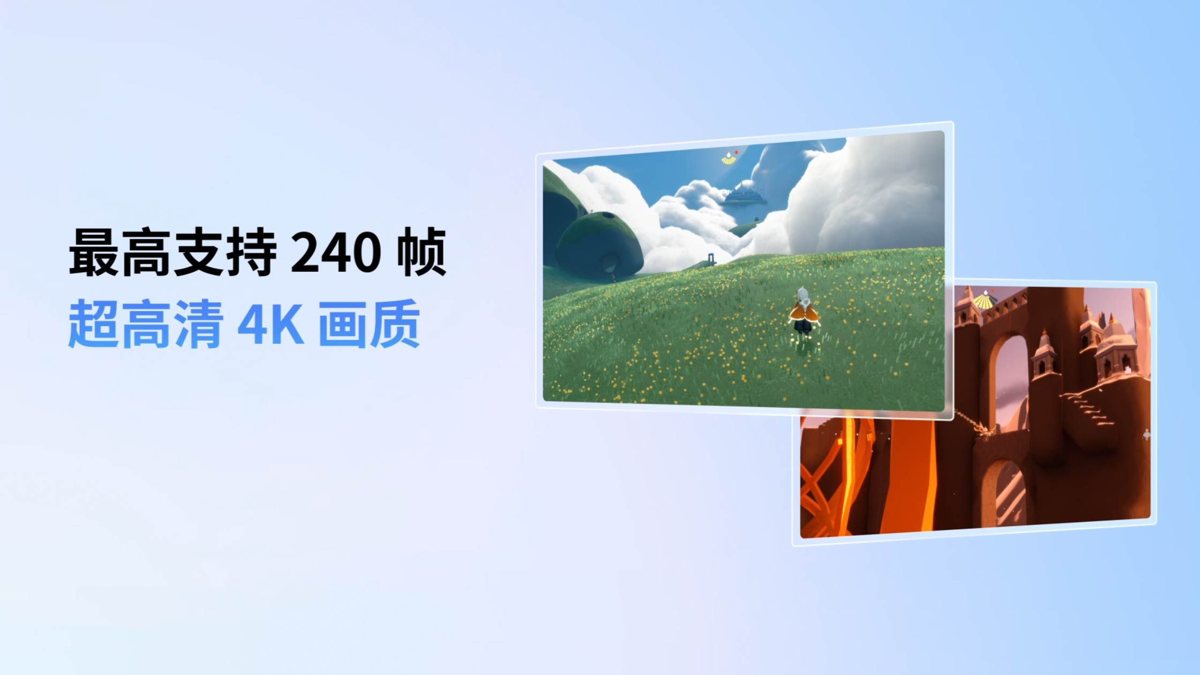
When the frame rate will not rise, in the emulator settings find the graphics/performance options, enable high-FPS mode and raise the FPS cap to 60 or higher (depending on game and monitor). The prerequisite is enough performance: confirm VT is on and effective, the GPU driver is current, use a discrete GPU, and assign enough RAM and CPU cores. Note some games lock frames themselves, so also set FPS high in the in-game graphics settings. A weak GPU (below GTX950-class) caps it (high-FPS option name varies by client).
What are the minimum requirements for MuMu Player?
Per the international site (mumuemulator.com) Windows requirements: 64-bit Win7+; a 4-core+ CPU (the page cites an i5-7500 class) that supports and has VT enabled; 4GB+ RAM; a GTX950-class GPU or better; 2GB+ on the install drive and 1.5GB+ free on the system drive. Note that 2GB is the installer bar, and with the Android image the real total is about 4-5GB - the two are not contradictory. The Mac version has separate requirements.
Can 4GB of RAM run MuMu Player smoothly?
4GB is the official minimum bar - it installs and runs, but only just runs rather than runs smoothly. With 4GB, opening a browser and others alongside easily lags or crashes, and the RAM assignable to the emulator is limited. To smooth it: single instance, close other programs, install on an SSD, and ensure VT is on. To truly play demanding games or multi-instance, upgrade to 8GB+. If budget allows, adding a RAM module is the best-value speedup.